Sales Order Agent·June 15, 2026·10 min read
AI Sales Order Automation for QuickBooks Desktop Enterprise

Daniel Emaasit
CEO, Logistify AI
TLDR
QuickBooks sales order automation reads customer orders from email, PDFs, and messages and creates them as sales orders in QuickBooks Desktop Enterprise, so nobody retypes them. Logistify does this through the QuickBooks Web Connector, and orders with an open question wait for your team. QuickBooks Desktop Enterprise has no cloud REST API, so most automation tools cannot write into it at all. The realistic path to AI sales order automation on Enterprise is a connector agent that runs inside your network and talks to QuickBooks through the Desktop SDK (QBXML) over the Web Connector. Logistify AI reads the messy inbound order — email body, PDF, Excel price list, WhatsApp photo, or EDI 850 — extracts it, validates it against your price levels, SKU aliases, and customer history, routes it to a human review queue, and only then writes a clean sales order into Enterprise. You keep Advanced Inventory, FIFO, and lot/serial tracking intact, and you do not have to migrate off Desktop to stop re-typing orders.
Why Can't I Just Bolt a Cloud Automation Tool Onto QuickBooks Desktop Enterprise?
Most order automation tools are built on one assumption: your system of record has a cloud REST API they can call over the internet. QuickBooks Desktop Enterprise does not. It is installed software that runs on a machine or a server inside your building, behind your firewall, in multi-user or hosted mode. There is no public endpoint to POST a sales order to. So when a vendor says they integrate with QuickBooks, almost always they mean QuickBooks Online — the cloud product with a modern API. Tell them you are on Desktop Enterprise and the conversation usually ends there.
That is the contrarian truth this post is about. The way you actually write a programmatic order into Enterprise is through the QuickBooks Desktop SDK — the QBXML API — which runs locally on the same machine or network as the QuickBooks application. Requests are typically shuttled in through the QuickBooks Web Connector, a small Intuit utility that lets an outside application exchange QBXML with the company file on a schedule. There is no way around this: any real integration has to reach inside the customer's private network and speak QBXML to the local install. A pure cloud tool with no presence inside your network simply cannot do it.
This is also why AI document automation, not a direct API, is the practical bridge for Enterprise shops. You are not waiting for Intuit to ship an API that is not coming. You put a connector agent inside the network to handle the QBXML write, and you use AI to do the hard part on the front end: turning whatever your customers actually send into a clean, structured order. We cover how Logistify AI does that on our Sales Order Agent page, and we wrote a companion piece on the entry side of this same workflow.
Does QuickBooks Desktop Enterprise Have an API?
Not in the way people mean when they say API in 2026. There is no hosted REST endpoint with OAuth that you can call from anywhere. What exists is the QuickBooks Desktop SDK, which exposes the company file through QBXML — an XML request-and-response format you send to the local QuickBooks install. A SalesOrderAdd request, for example, carries the customer ref, the line items with their item refs and quantities, the rate or price level, and the ship and class fields. QuickBooks validates it against the company file and returns the created transaction or an error.
The catch is everything around that request. QBXML only works against the file it is connected to, on the network where QuickBooks lives. It needs the file open in the right mode, it serializes writes, and it will reject a SalesOrderAdd outright if the customer or any item does not already exist. That is not a flaw — it is the system of record protecting itself. It does mean automation has to do real work before it ever sends the request: resolve the customer, resolve every line to a real item, get the price right. Send QuickBooks a half-matched order and it does not guess; it errors.
What Breaks When Automation Ignores Advanced Inventory?
Enterprise is the system of record for distributors and manufacturers precisely because of features QuickBooks Online does not match: Advanced Inventory with multiple warehouses, FIFO costing, lot and serial number tracking, bin locations, and customer-specific price levels. These are exactly the things naive automation steps on. A tool that just shoves line items into a sales order without respecting them does not save you work — it creates a different, worse cleanup job.
- Price levels: a customer on a 12% off price level should get their negotiated rate, not list. Automation that writes a flat list price quietly overcharges or undercharges and the discrepancy surfaces at invoicing, after the order has shipped.
- Multi-warehouse / inventory sites: an order for the same SKU out of the Dallas site is not the same line as out of the Newark site. Drop the site and Advanced Inventory cannot allocate stock correctly.
- Lot and serial tracking: regulated and perishable goods need the lot captured. An automated write that skips the lot/serial field forces a manual edit on every line that needs traceability.
- FIFO costing: writing transactions out of order or with the wrong dates distorts FIFO layers, which then misstates COGS.
- Units of measure: a customer who orders 5 cases when the item is stocked in eaches needs the UoM conversion respected, not 5 eaches written to the order.
So AI order automation for Enterprise is not just extraction plus a QBXML write. It has to map every extracted line to the right item, the right inventory site, the right price level, the right unit of measure, and capture lot or serial data where the item requires it. Respecting Advanced Inventory is the difference between an order that posts clean and one that creates an afternoon of corrections.
For how these features work in QuickBooks Desktop Enterprise itself, see how to track inventory by site, how to transfer inventory between sites, how to fix and prevent negative inventory and how to run cycle counts in Advanced Inventory.
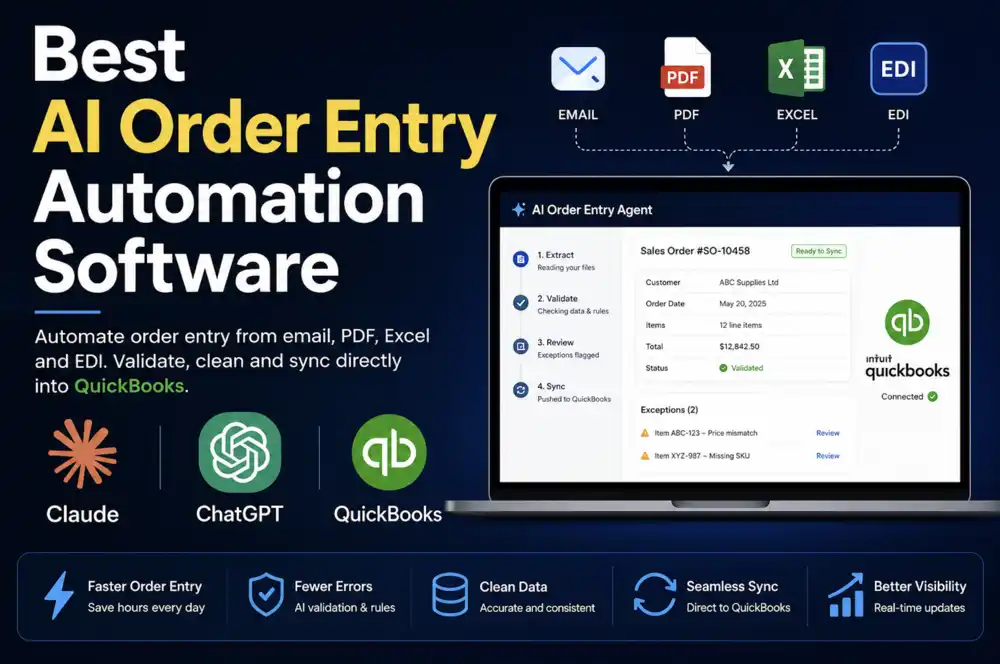
How AI Sales Order Automation Actually Works on Enterprise, End to End
Here is the full path an order takes, using the channels Enterprise shops actually receive. The point is that the messy front end is handled by AI and the clean back end is handled by the connector — and a human sits in between before anything is written.
1. The Messy Inbound Order
A buyer emails 'usual order plus 10 extra cases of the 16oz' in the email body. Another attaches a purchase order as a PDF. A third sends an Excel sheet that is really their own price list with quantities typed into a column. A regular sends a WhatsApp photo of a handwritten order from the warehouse floor. A big-box account drops an EDI 850. None of these is a structured QuickBooks transaction, and a person currently re-types every one of them.
Further reading
The Coordination Tax: The $1.6 Trillion Cost of Running Supply Chain on Human Hands
The CEO's thesis on why every manual handoff in your supply chain is a hidden tax — and why AI Agents are the only way to eliminate it.
Read the memo2. AI Extraction
Logistify AI reads each channel and extracts the same set of fields regardless of format: who the customer is, which products, what quantities, requested pricing, ship-to, dates, purchase order number, and any notes. The 850 is parsed as a structured document; the photo and PDF are read for their content; 'the usual' is resolved against that customer's order history. Everything lands in one queue in the same shape.
3. Validation Against Your QuickBooks Reality
This is the step that makes the QBXML write actually succeed. The customer name on the email gets matched to the right QuickBooks customer, including the 'Bob's Beverage' versus 'Bobs Beverage LLC' problem. Each line is matched to a real item, using SKU aliases and the names that specific customer uses for products rather than your internal SKUs. The requested price is checked against that customer's price level, and a mismatch is flagged rather than silently accepted. Duplicate orders — the same purchase order sent twice, or an email plus an EDI copy of the same order — are flagged. Quantities beyond available stock are flagged as potential backorders.
4. Human Review Queue
Clean orders from known customers with known items at agreed prices can move fast. Everything with an exception — a new customer not yet in QuickBooks, a price discrepancy, an ambiguous product, a possible duplicate, a backorder — surfaces in a review queue for a person to approve or correct. Nothing is written to Enterprise until a human signs off. This is the guardrail that lets you trust automation against your system of record.
5. Written Into Enterprise via the Connector
Once approved, the connector agent inside your network sends the QBXML SalesOrderAdd to the local QuickBooks install through the Web Connector. The sales order is created with the matched customer, every line tied to the correct item, the right price level, the right inventory site, and lot or serial data where required. No one re-keys it. Your QuickBooks data never has to leave your network for any of this to work.
Do I Have to Migrate Off QuickBooks Desktop to Automate Orders?
No, and that is the whole point. Intuit has been steadily pushing customers toward the cloud and applying sunset pressure to Desktop, and plenty of vendors use that to sell a migration. But migrating years of transactional history, re-building Advanced Inventory configuration, retraining staff, and accepting a feature gap is a large, risky project that many distributors and manufacturers are not going to take on for years, if at all. We wrote separately about what the Desktop discontinuation pressure actually means for distributors and manufacturers.
AI document automation lets you decouple those two decisions. You can stop manually keying orders now, while keeping Enterprise as your system of record. Automate the order intake without ripping out the books. If and when you do migrate, the same intake workflow points at the new system — but the migration is no longer the prerequisite for fixing the order desk.
Does the Math Actually Work?
Run your own numbers, because they are usually larger than people expect. A distributor doing 3,000 to 4,000 orders a year at a conservative 8 minutes of keying per order is spending 400 to 530 hours annually just transcribing orders into QuickBooks — before counting the cost of the errors that creep in, the returns they cause, and the fulfilment delays while someone chases a missing line. QuickBooks Desktop is not a niche holdout either: Intuit has reported QuickBooks Desktop being used by millions of businesses across North America, with Enterprise serving the larger end — the manufacturers and wholesale distributors who have the order volume and the inventory complexity that make manual entry most expensive.
The reason to automate is not a generic efficiency story. It is that the order desk is doing hours of mechanical transcription a day that an AI front end plus a QBXML connector can absorb, while a person handles only the exceptions that actually need judgment.
Who This Is For
Operations and supply-chain leaders at wholesale distributors and manufacturers who run QuickBooks Desktop Enterprise on-premise or hosted, receive a meaningful volume of orders across email, PDF, Excel, WhatsApp, and EDI, and rely on Advanced Inventory features that a cloud migration would put at risk. If your team is keying orders into Enterprise by hand and you have been told automation is not possible because Desktop has no API, this is the workflow built for exactly that situation.
How Do I Get Started?
Email daniel@logistify.ai or call +1 302 279 5510 with a short description of how your orders arrive and how they get into QuickBooks today. Bring a few of your messiest real orders and we will run them through the workflow live against an Enterprise file.
Automate order entry into QuickBooks Desktop Enterprise
See Logistify AI read a real email, PDF, Excel price list, or EDI 850 and write a clean sales order into Enterprise through the connector — with a human review step before anything posts. Bring your messiest orders.
Frequently Asked Questions
Ready to automate your supply chain?
Join manufacturers and distributors automating their operations with Logistify AI.